Settings Configuration Guide
Overview
This guide covers how to configure dynamic settings panels in the UI using JSON configuration files. The system supports two types of settings:
- Application Settings (
applicationsSettings.json) - For application-level configurations - Service Settings (
servicesSettings.json) - For service-level configurations
Both follow a similiar architecture and structure, but there are some key differences to be aware of. For the most part, the Application Settings is the more flexible of the two, and you will most likely use the Application Settings configuration. But, this page covers both given they are very similiar.
The Distinction between the two configuration categories are:
Applications Configurations: In OpenDSO, Applications either manage devices/equipment, or run control algorithms that affect the grid or smaller segments of the grid. This will be used almost all of the time by 3rd party developers as they build systems to manage their equipment.
Services Configurations: Services provide information and data for multiple Applications. They do not control equipment or affect the eletrical grid directly. They may act as a service bridge between applications as well.
Where to Access These Settings
These settings are accessible through the OpenDSO Settings interface in your web application:
URL Pattern: https://gms.<yourdomain>/settings/
The interface has multiple tabs in the navigation, we'll focus on the two that matter:
- SERVICES - Access Service Settings (servicesSettings.json) at
/settings/services - APPLICATIONS - Access Application Settings (applicationsSettings.json) at
/settings/applications
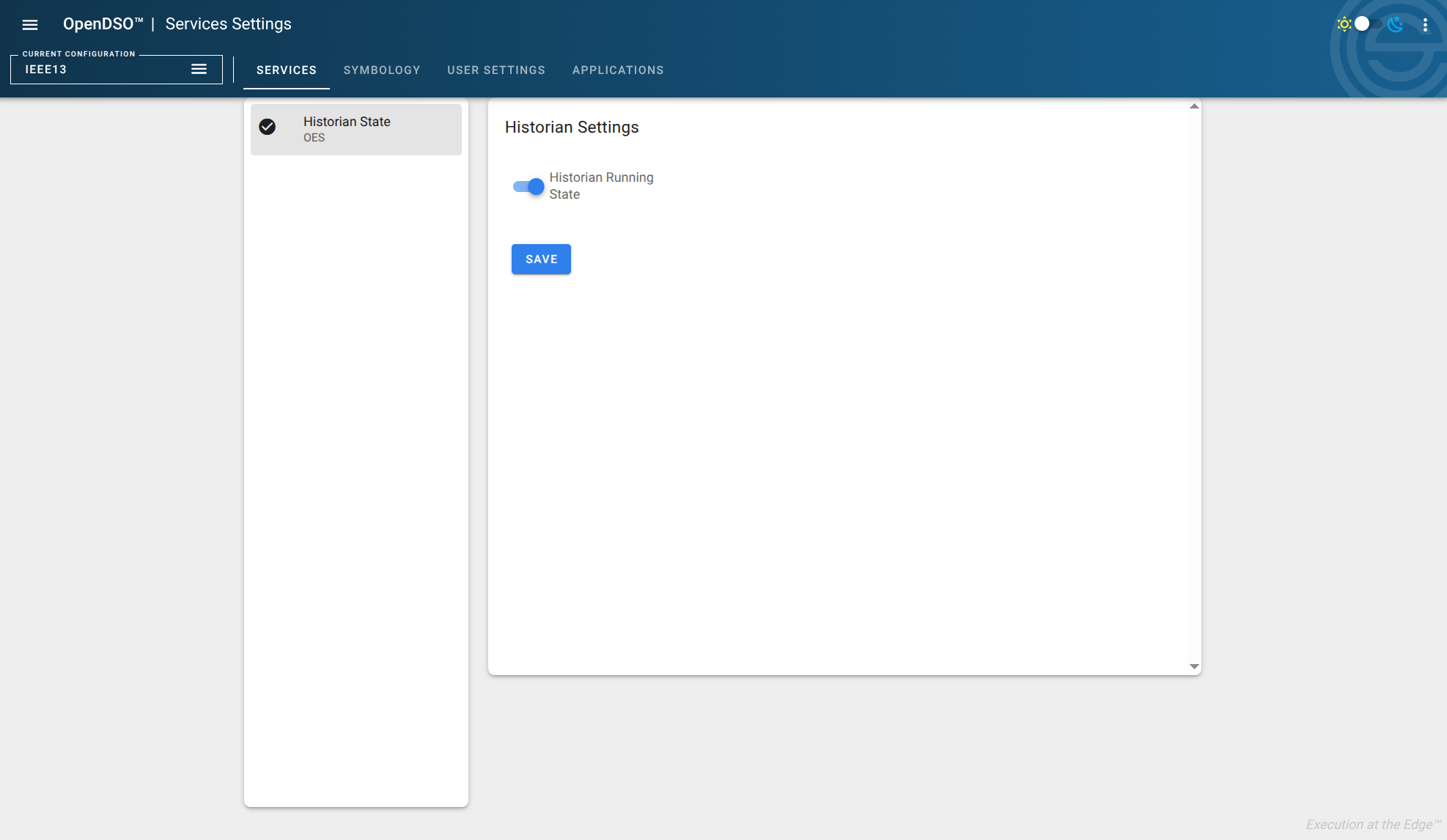 The Services Settings interface showing a simple boolean configuration
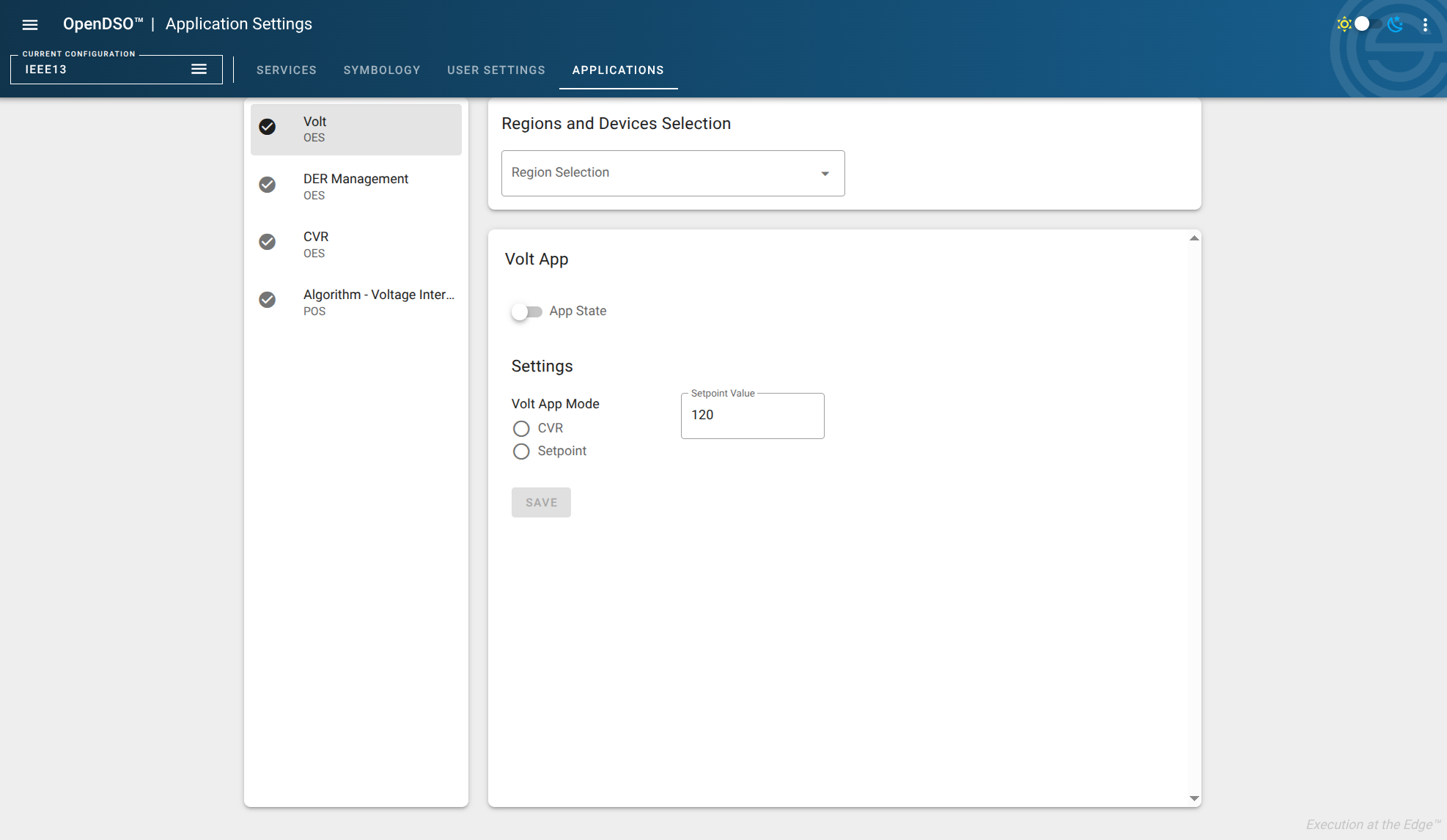 The Applications Settings interface showing a multi-field config with a regions selection list
File Locations
The location of ApplicationSettings.json and ServiceSettings.json files will be dependent on the deployment of the OpenDSO GMS Applications. These files are often volume mounted in containerized deployments.
Docker Compose Deployment Paths
In an OpenDSO Docker Compose deployment, the settings files can be found at:
- Service Settings:
<client_deployment>/config/genesis-node-app/serviceSettings.json - Application Settings:
<client_deployment>/config/genesis-node-app/applicationSettings.json
Where <client_deployment> refers to your deployment repository directory structure.
Container Volume Binding
When deployed via the genesis-node-app container image, the volume binding should be configured as:
-v <client_deployment>/config/genesis-node-app/config:/usr/share/nginx/html/config
This mounts the host directory containing your settings files to the nginx web server's public config directory inside the container, making them accessible to the UI to find.
Configuration Structure
Both Applications and Services settings use a similiar structure. For either the applicationsSettings.json, or servicesSettings.json, they will follow this schema:
{
  "your-setting-key": {
    "title": "Display Title",
    "desc": "Short description",
    "options": [...],
    "get": {...},
    "save": {...} or [...]
  }
}
Required Properties
1. title (string)
- The display name shown in the left sidebar
- Example:
"Volt","DER Management","Historian"
2. desc (string)
- Short description shown below the title in the sidebar
- Example:
"OES","POS"
3. options (array, can be empty)
- Defines optional selection fields shown at the top of the form
- Supported types:
"regions"- Shows region/feeder selector"devices"- Shows device filter selector (used only in Service Settings)
The reason 'devices' exists for Service settings is because Services are generally running on the same 'compute device' as an OpenFMB adapter. This allows for a more 'at the device/edge' distributed NATS topic structure for our distributed micro-services.
Format:
"options": [
  {
    "type": "regions",      // or "devices"
    "multiple": false       // true = multi-select, false = single select (optional, defaults to true)
  }
]
Empty options (no region/device selection needed):
"options": []
4. get (object)
- Defines how to fetch the form schema
- Currently only HTTP protocol is supported
Format:
"get": {
  "endpoint": "/config/your-form.json",
  "protocol": "http"
}
The endpoint should be a valid URI that will load a JSON schema form definition. This could be a JSON file hosted anywhere that's accessible to the UI. Or, it could a be JSON response from a custom API that is also accsesible to the UI.
5. save (object or array)
- Defines how to save data when user clicks "save" button
- NOTE Saving is different between the Service Settings and Applications Settings
- Service Settings "Save" contains a single object
- Application Settings "Save" contains an array of objects
- Currently only the NATS protocol is supported for both settings.
Format for Application Settings (array):
"save": [
  {
    "endpoint": "opendso.{{regionID}}.your-app.endpoint-name",
    "protocol": "nats",
    "type": "publish",
    "payload": [
      {
        "label": "backend_field_name",
        "value": "ui_field_name"
      }
    ],
    "payloadType": "boolean"  // optional
  }
]
NOTE : The Applications Configurations save array allows 'saveing' to multiple endpoints. This is useful if your Application was designed with multiple RESTful endpoints, but you'd prefer to reveal all these data points with just one form.
Format for Service Settings (object):
"save": {
  "endpoint": "opendso.{{regionID}}.historian.{{deviceID}}.settings.update",
  "protocol": "nats"
}
Key Differences:
- Application Settings: Uses array with detailed payload mappings
- Service Settings: Simpler object format, sends entire form data
- Service Settings: Can use
{{deviceID}}variable in addition to{{regionID}} {{regionID}}: Is automatically replaced with the selected region/feeder ID{{deviceID}}: Is automatically replaced with the selected device ID (Service Settings only)
Payload mapping (Application Settings only):
label: The field name expected by the backend/NATSvalue: The property key from your form definition file
PayloadType options (Application Settings only):
- Omit for normal object mapping
"boolean": Sends only the boolean value from a single field- This allows sending a
True | False, rather than a string of'true' | 'false'
6. Application Settings onLoad field (array, optional)
- Defines how to load existing data when a region is selected
- Can have multiple load operations
- Supports two types:
"listen"and"publish" - This allows your application to return the current state of the Form (ex: to show the user that the algorithm is currently 'on' or 'off').
Example Format for listen (ie. the Application emits/polls the state):
{
  "endpoint": "opendso.{{regionID}}.your-app.endpoint-name.state",
  "protocol": "nats",
  "type": "listen",
  "payload": [
    {
      "label": "backend_field_name",
      "value": "ui_field_name"
    }
  ]
}
Example Format for publish (trigger/fetch to get state) :
{
  "endpoint": "opendso.{{regionID}}.your-app.endpoint-name.getstate",
  "protocol": "nats",
  "type": "publish"
}
Note: Service Settings do not use the onLoad property. Only Applications.
Form Definition Files
These files define the actual UI form fields for you application or service, they follow this structure:
Structure:
{
  "title": "Your Form Title",
  "type": "object",
  "properties": {
    "fieldKey1": {
      "title": "Field Display Name",
      "type": "boolean|text|number|radio|header",
      "value": default_value,
      "required": true|false
    }
  }
}
Supported Field Types
-
boolean - Toggle switch
"enabled": {
  "title": "App State",
  "type": "boolean",
  "value": false
} -
text - Text input
"setpoint": {
  "type": "text",
  "title": "Setpoint Value",
  "required": true,
  "value": "120"
} -
number - Number input
"varValue": {
  "type": "number",
  "title": "VAr Value",
  "required": false,
  "value": 0
} -
radio - Radio button group
"mode": {
  "type": "radio",
  "title": "Mode Selection",
  "required": true,
  "value": {
    "options": [
      {"label": "Option 1", "value": "opt1"},
      {"label": "Option 2", "value": "opt2"}
    ]
  }
} -
header - Section header (visual only, no data)
"settingsHeader": {
  "type": "header",
  "title": "Settings Section"
}
Field Properties
- title (required): Display label for the field
- type (required): Field type (see above)
- value (required): Default value
- required (optional): Whether field is required for validation
Complete Examples
Example 1: Application Setting (with onLoad)
Form Definition - configs/app/load-management.json:
{
  "title": "Load Management Settings",
  "type": "object",
  "properties": {
    "enabledApp": {
      "title": "App State",
      "type": "boolean",
      "value": false
    },
    "settingsHeader": {
      "type": "header",
      "title": "Load Settings"
    },
    "maxLoad": {
      "type": "number",
      "title": "Maximum Load (kW)",
      "required": true,
      "value": 1000
    },
    "priority": {
      "type": "radio",
      "title": "Priority Level",
      "required": true,
      "value": {
        "options": [
          {"label": "High", "value": "high"},
          {"label": "Medium", "value": "medium"},
          {"label": "Low", "value": "low"}
        ]
      }
    }
  }
}
Add to configs/app/applicationsSettings.json:
{
  "load-mgmt": {
    "title": "Load Management",
    "desc": "OES",
    "options": [
      {
        "type": "regions",
        "multiple": false
      }
    ],
    "get": {
      "endpoint": "/config/load-management.json",
      "protocol": "http"
    },
    "save": [
      {
        "endpoint": "opendso.{{regionID}}.loadmgmt.setstate",
        "protocol": "nats",
        "type": "publish",
        "payload": [
          {
            "label": "enabled",
            "value": "enabledApp"
          },
          {
            "label": "maxLoad",
            "value": "maxLoad"
          },
          {
            "label": "priority",
            "value": "priority"
          }
        ]
      }
    ],
    "onLoad": [
      {
        "endpoint": "opendso.{{regionID}}.loadmgmt.state",
        "protocol": "nats",
        "type": "listen",
        "payload": [
          {
            "label": "enabled",
            "value": "enabledApp"
          },
          {
            "label": "maxLoad",
            "value": "maxLoad"
          },
          {
            "label": "priority",
            "value": "priority"
          }
        ]
      },
      {
        "endpoint": "opendso.{{regionID}}.loadmgmt.getstate",
        "protocol": "nats",
        "type": "publish"
      }
    ]
  }
}
Example 2: Service Setting (device-based)
Form Definition - configs/app/device-monitor.json:
{
  "title": "Device Monitor Settings",
  "type": "object",
  "properties": {
    "enabledMonitor": {
      "title": "Monitor State",
      "type": "boolean",
      "value": false
    },
    "settingsHeader": {
      "type": "header",
      "title": "Monitoring Configuration"
    },
    "pollingInterval": {
      "type": "number",
      "title": "Polling Interval (seconds)",
      "required": true,
      "value": 60
    },
    "alertThreshold": {
      "type": "number",
      "title": "Alert Threshold",
      "required": true,
      "value": 100
    }
  }
}
Add to configs/app/servicesSettings.json:
{
  "device-monitor": {
    "title": "Device Monitor",
    "desc": "OES",
    "options": [
      {
        "type": "devices"
      }
    ],
    "get": {
      "endpoint": "/config/device-monitor.json",
      "protocol": "http"
    },
    "save": {
      "endpoint": "opendso.{{regionID}}.monitor.{{deviceID}}.settings.update",
      "protocol": "nats"
    }
  }
}
Key Differences Between Application and Service Settings
| Feature | Application Settings | Service Settings |
|---|---|---|
| File | applicationsSettings.json | servicesSettings.json |
| Typical Options | "regions" | "devices" |
| Save Format | Array of objects with payload mappings | Single object, sends all form data |
| onLoad Support | Yes, with payload mappings | No (not implemented) |
| Variable Substitution | {{regionID}} | {{regionID}}, {{deviceID}} |
| Save Complexity | More complex with field mapping | Simpler, automatic form data |
Key Points
- No UI code changes needed - Everything is configuration-driven
- Field keys must match - In Application Settings, the
valuein payload mappings must match property keys from your form definition - NATS endpoints - Must match your backend's expected topic names
- Validation - The
requiredfield in form definitions enables validation - Multiple operations - Application Settings can have multiple save/onLoad operations
- Region vs Device selection - Use
"regions"for application-wide settings,"devices"for device-specific settings - Automatic device-to-region mapping - Service Settings automatically determine regionID from the selected deviceID
Testing Your Changes
- Save both files (applicationsSettings.json/servicesSettings.json and your form definition)
- Ensure files are served via the web server (typically copied to
packages/genesis-node-app/public/config/) - Reload the application
- Your new setting should appear in the left sidebar
- Select a region/device to test (if applicable)
- Fill out the form and test saving
Troubleshooting
- Setting doesn't appear: Check JSON syntax in your settings config file
- Form doesn't load: Verify the
get.endpointpath is correct and the file exists - Save doesn't work: Check NATS endpoint names and payload mappings (Application Settings)
- Validation issues: Ensure
requiredfields are properly set in form definition - Device selection not working: Verify you're using
"type": "devices"in options (Service Settings) - Region selection not working: Verify you're using
"type": "regions"in options (Application Settings)
Advanced: When to Use Which
Use Application Settings when:
- The configuration applies to an entire region/feeder
- You need to load existing state from the backend
- You need complex payload transformations
- Settings control application-level behavior (CVR, Volt Reduction, etc.)
Use Service Settings when:
- The configuration applies to specific devices
- You need device-level granularity
- Save operations are simpler (entire form data)
- Settings control service behavior (Historian, device monitors, etc.)