User Guide
Overview
The NATS OpenFMB & Protobuf Inspector is a web-based debugging and inspection tool for monitoring and interacting with NATS messaging systems that use OpenFMB protobuf messages. The tool provides real-time visibility into message traffic, supports multiple simultaneous connections, and enables users to subscribe to topics, publish messages, and inspect protobuf message structures.
Key Features
- Multiple Connection Support: Manage multiple NATS server connections simultaneously
- Topic Subscription: Subscribe to NATS subjects using wildcards and view incoming messages in real-time
- Message Inspection: View decoded protobuf messages in both JSON tree view and flat property format
- Search & Filter: Search through message properties and filter subscribed topics
- Publishing: Publish custom messages to NATS topics
- Request/Response: Send request messages and receive responses
- Custom Protobuf Support: Publish custom protobuf messages
Getting Started
Connecting to a NATS Server
- Click the "Add a connection..." button in the main interface
- In the connection dialog that appears, enter your NATS server endpoint in the Server Endpoint field
- Format:
wss://[hostname]:[port] - Example:
wss://ieee13.dev.oesinc.dev:9222
- Format:
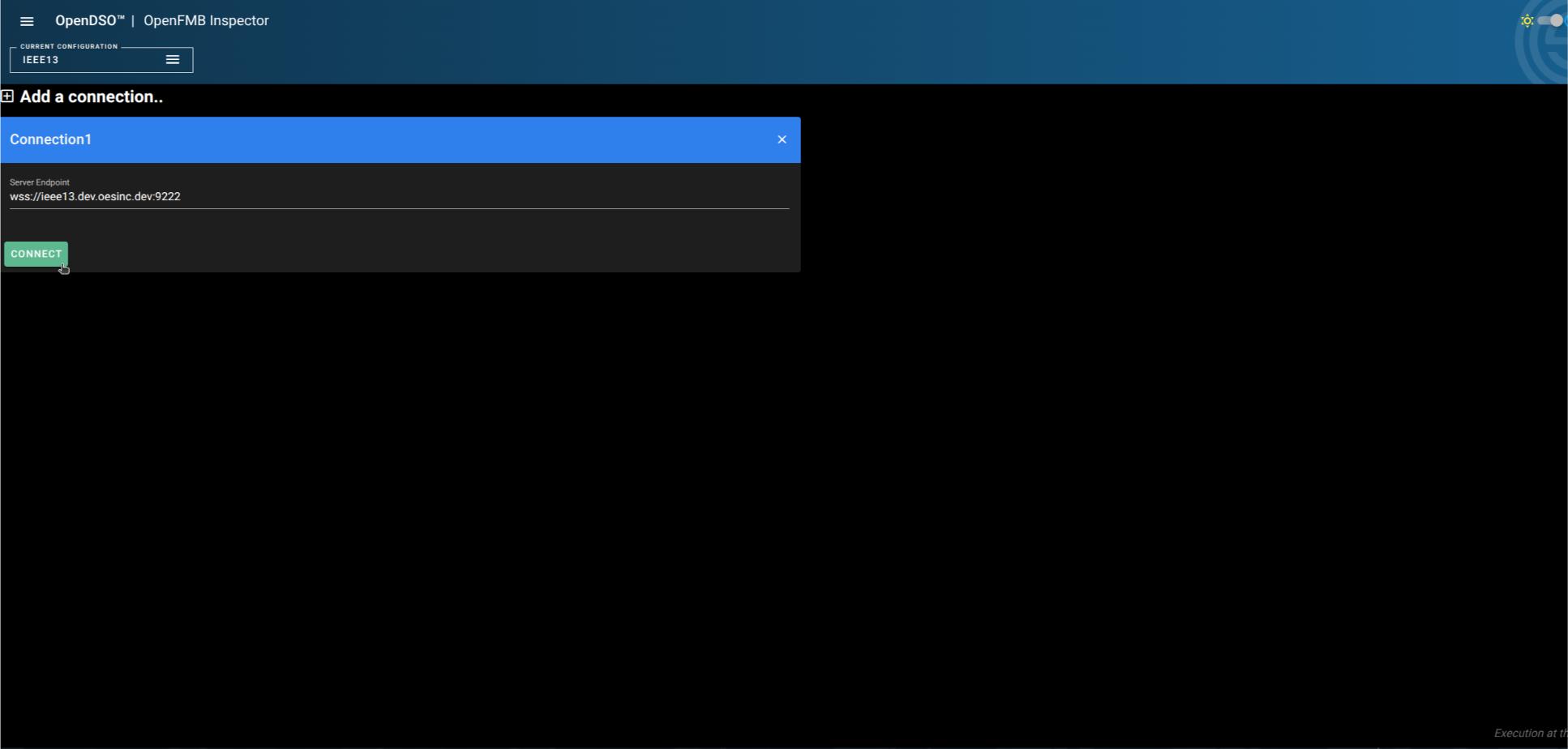
- Click the CONNECT button to establish the connection
- Once connected, you'll see four tabs available:
- SUBSCRIBE: Monitor incoming messages on topics
- PUBLISH: Send messages to topics
- REQUEST: Send request/response messages
- PUBLISH CUSTOM PROTO: Send custom protobuf messages
Subscribing to Topics
Basic Subscription
- Open the SUBSCRIBE tab in your connection window
- In the Subject field, enter the NATS subject pattern you want to monitor
- Use
>as a wildcard to subscribe to all topics - Use specific patterns like
openfmb.>to subscribe to all OpenFMB topics - Use more specific patterns like
openfmb.breakermodule.>to subscribe to specific device types
- Use
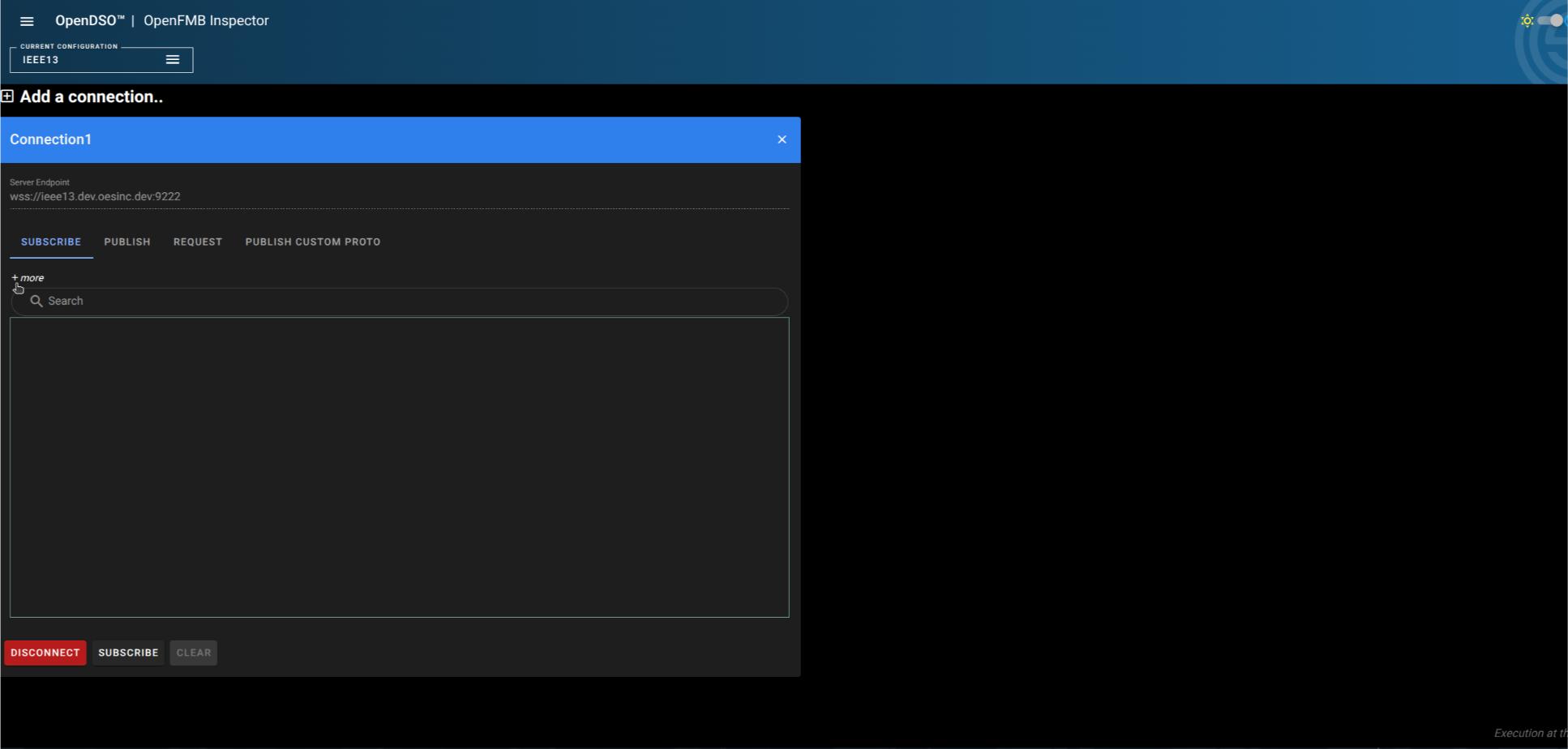
- Click the SUBSCRIBE button to start receiving messages
Viewing Subscribed Messages
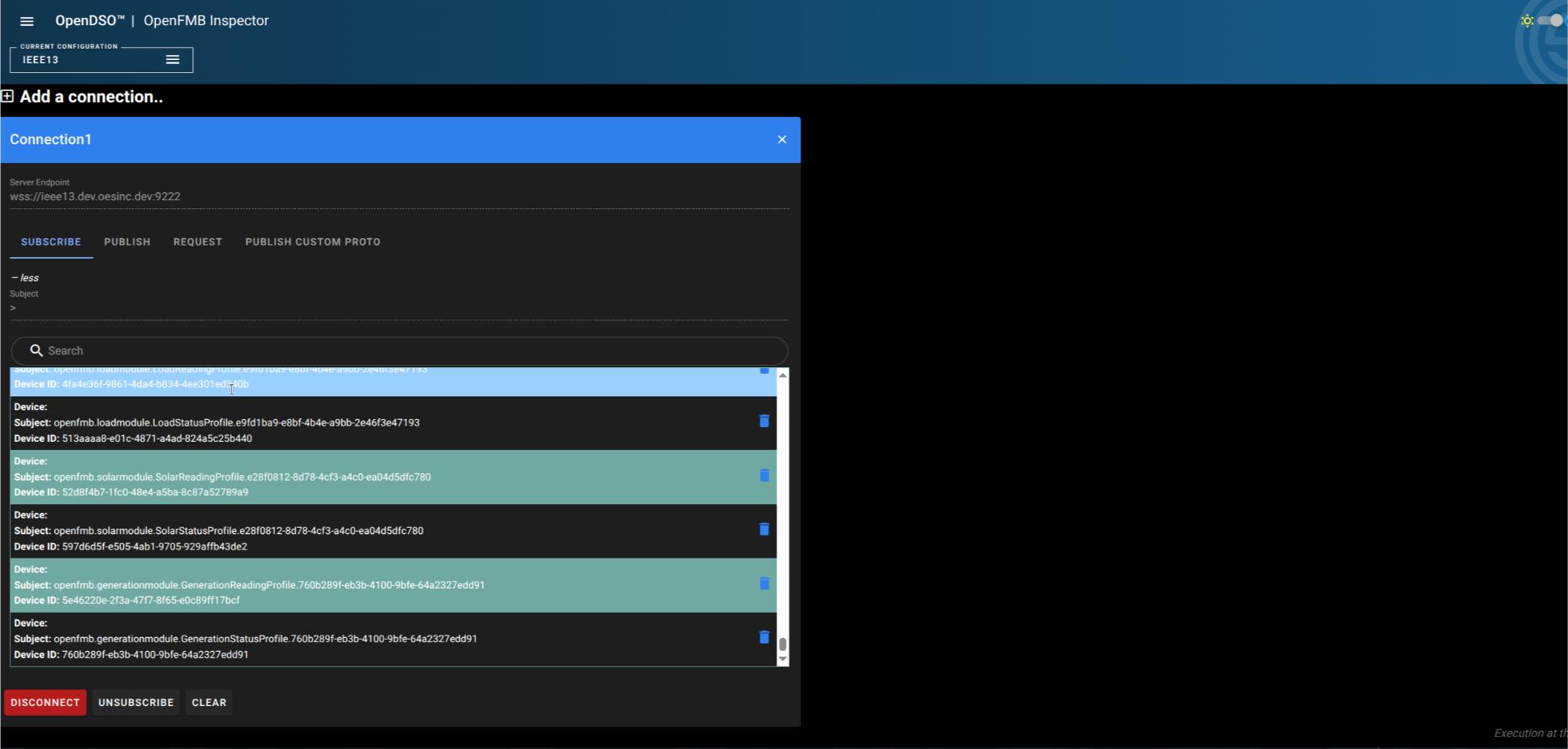
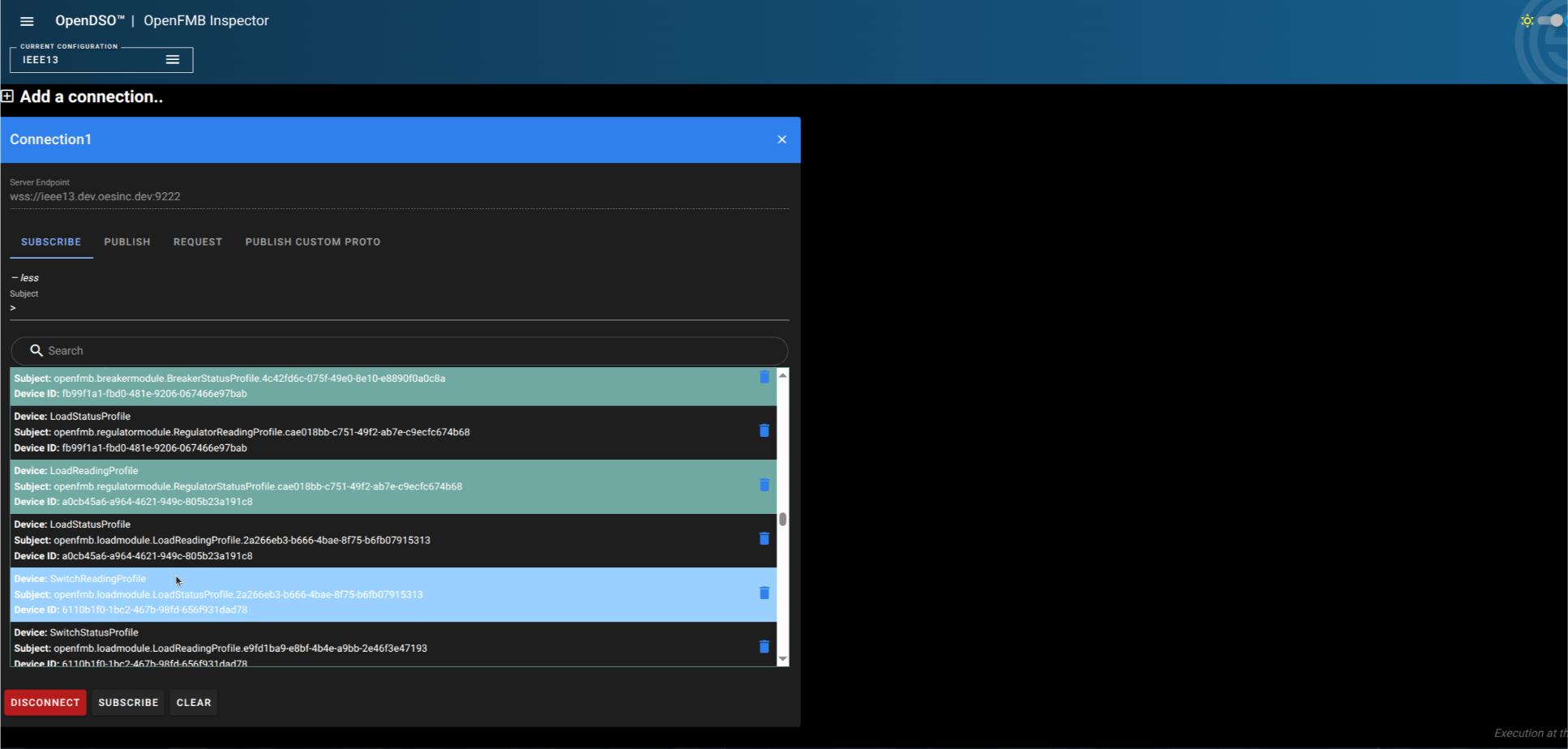
Once subscribed, incoming messages appear in a scrollable list. Each message entry displays:
- Device: The device type (e.g., LoadStatusProfile, BreakerStatusProfile)
- Subject: The full NATS subject the message was published to
- Device ID: The unique identifier of the device
Searching and Filtering
Use the Search box above the message list to filter messages:
- Search by device type, subject, or device ID
- The search filters the displayed messages in real-time
Inspecting Message Contents
Click on any message in the list to view its detailed contents. The inspector provides multiple viewing options:
JSON Tree View
The default view shows the protobuf message decoded into a hierarchical JSON structure:
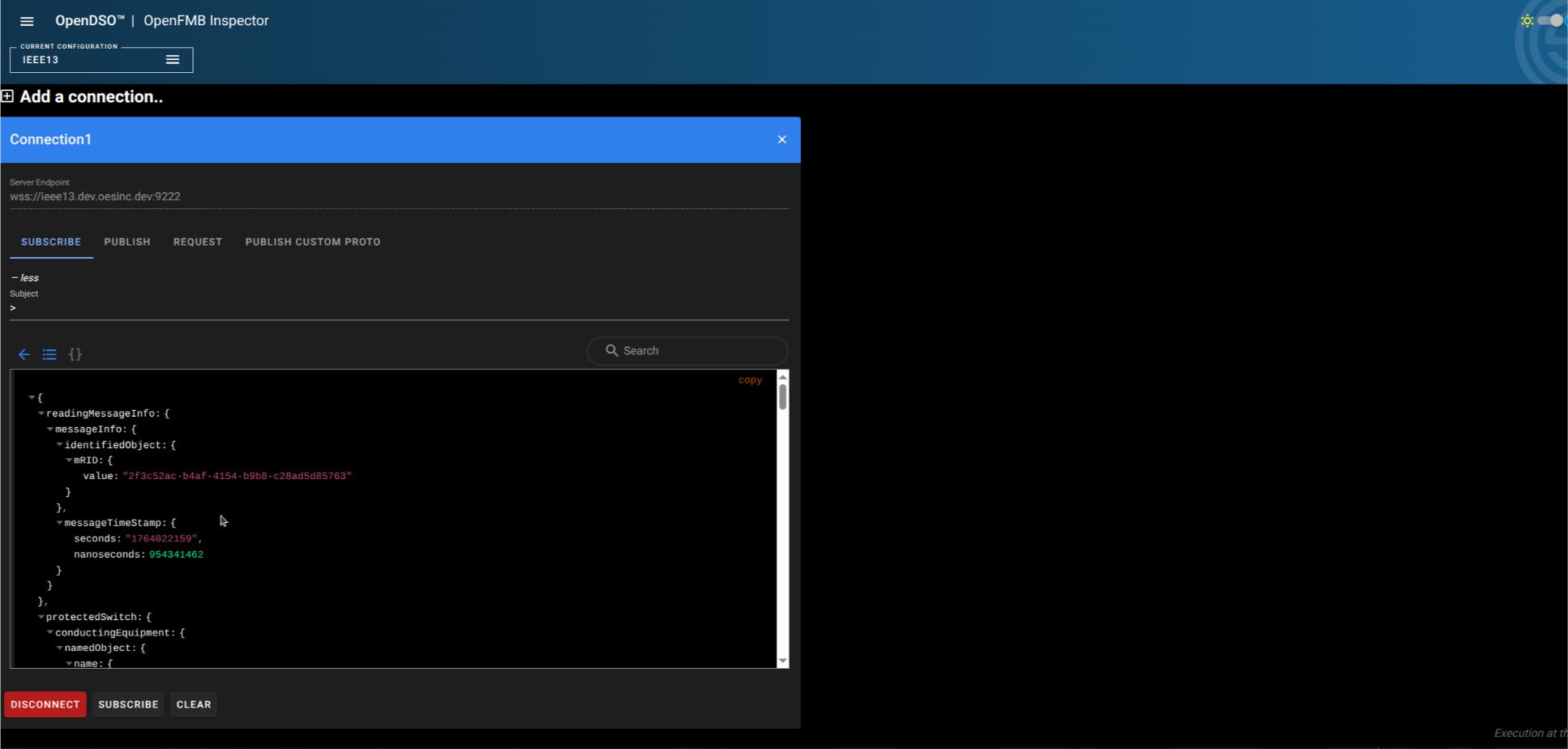
- Navigate through nested objects by expanding/collapsing nodes
- View all message fields and their values
- Use the Copy button to copy the entire message to clipboard
Flat Property View
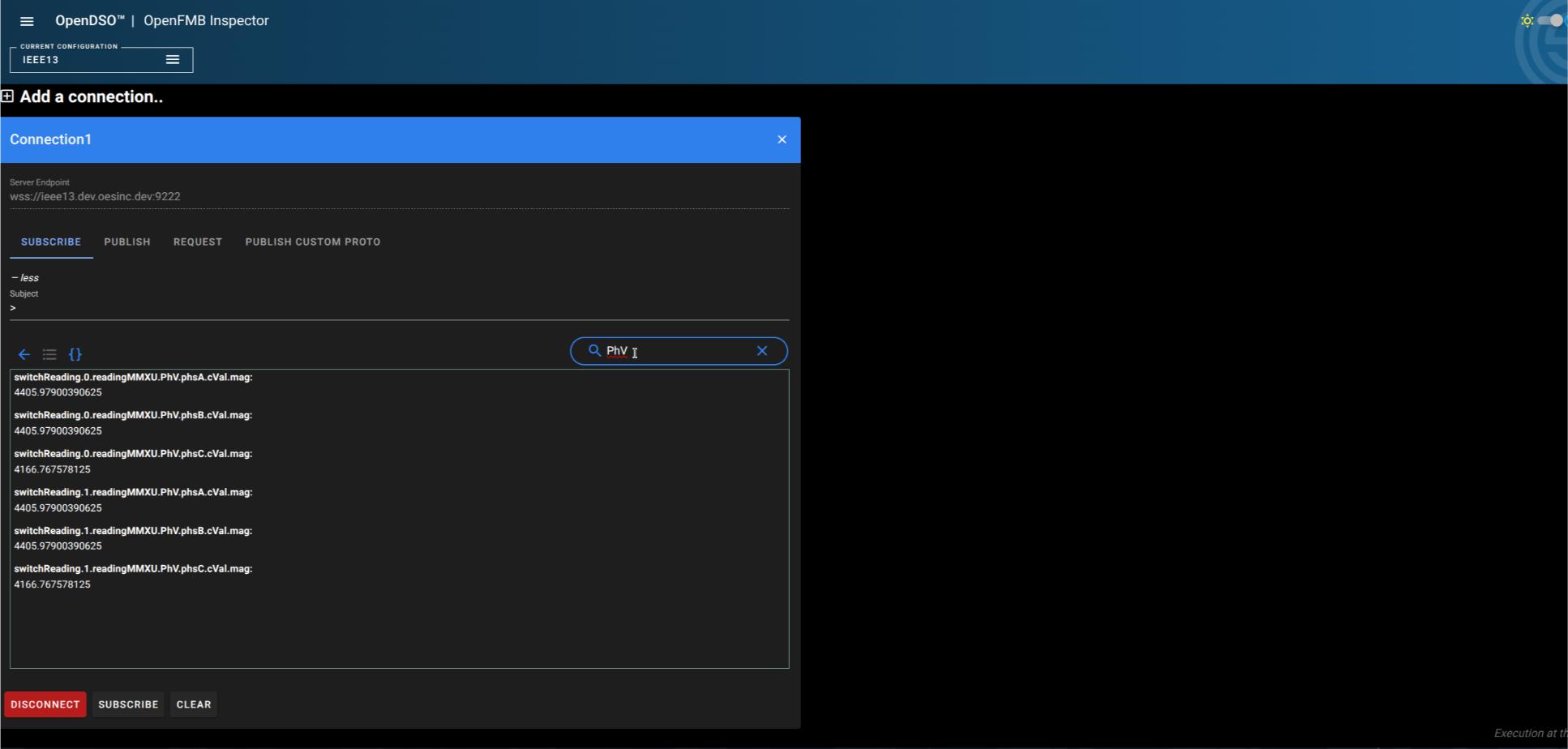
Click the View properties button to switch to a flat list of all properties:
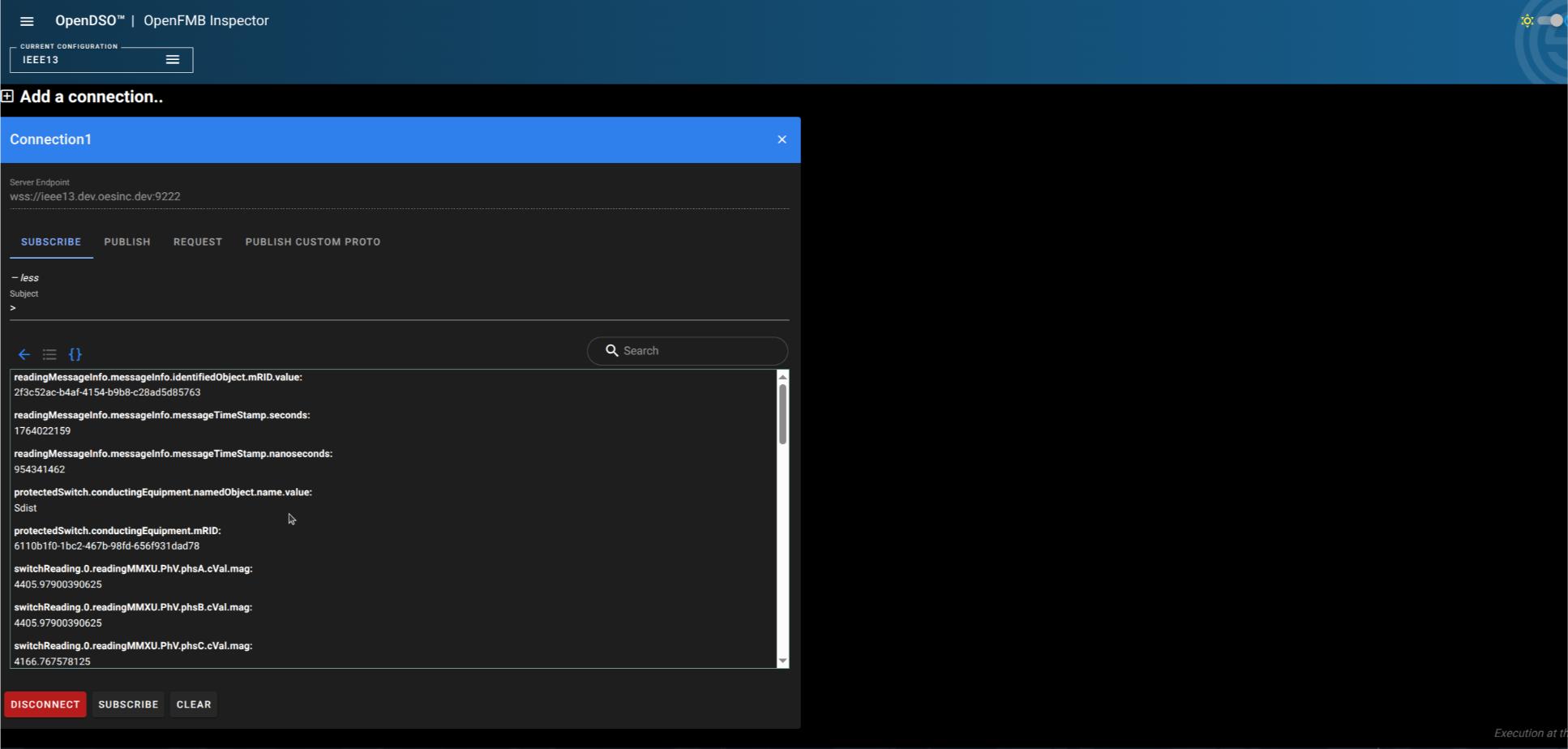
- Shows all properties in
path.to.property: valueformat - Useful for quickly scanning specific values
- Easier to copy individual property paths
Searching Within Messages
Use the search box in the message inspector to filter displayed properties:
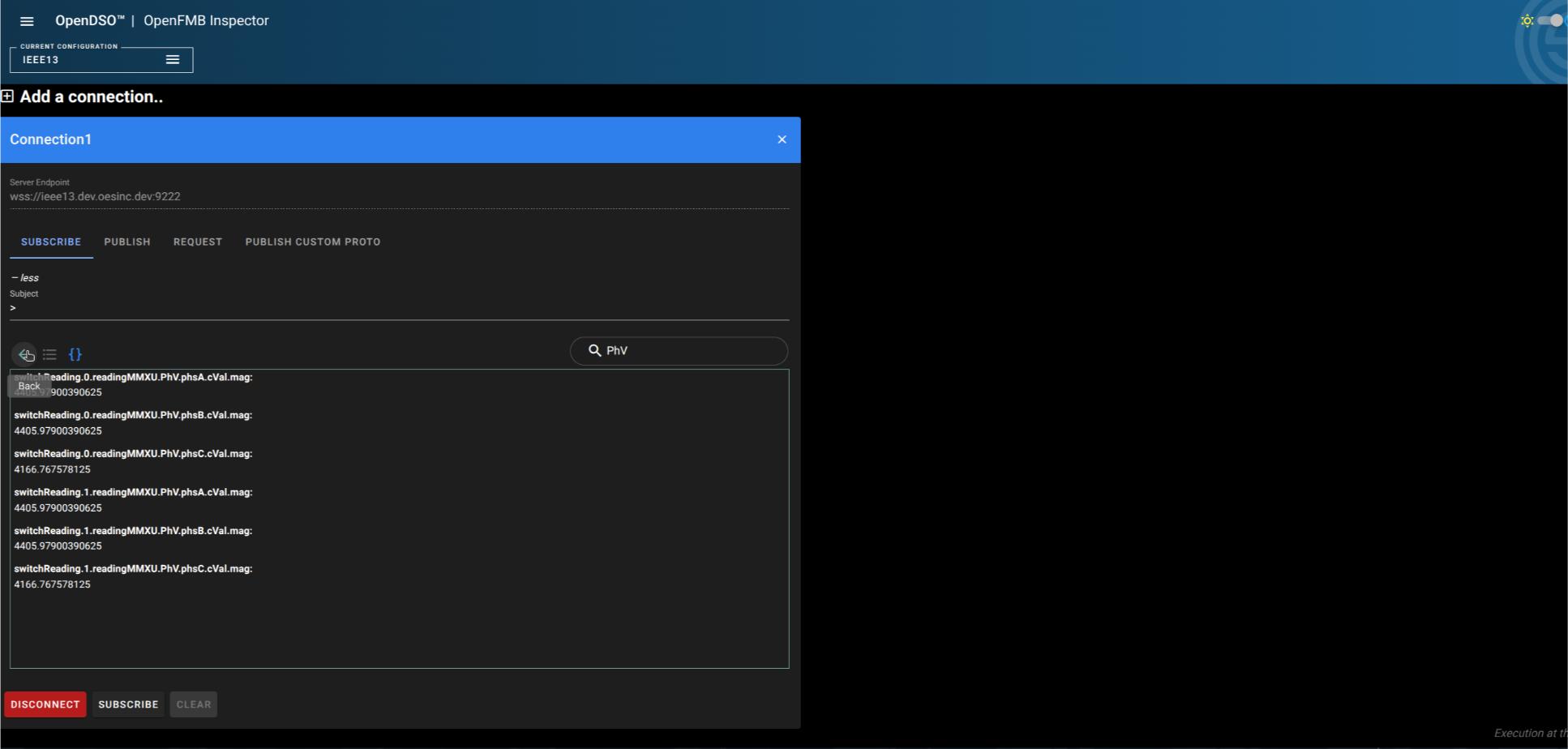
- Search for specific property names or values
- Works in both tree and flat property views
- Example: Search for "PhV" to find all phase voltage readings
Managing Subscriptions
- Click UNSUBSCRIBE to stop receiving messages on the current subscription
- Click CLEAR to remove all messages from the display
- Click DISCONNECT to close the connection
Advanced Filtering Techniques
Subscribing to Specific Message Types
You can subscribe to specific OpenFMB message types using subject patterns:
openfmb.breakermodule.>- All breaker module messages
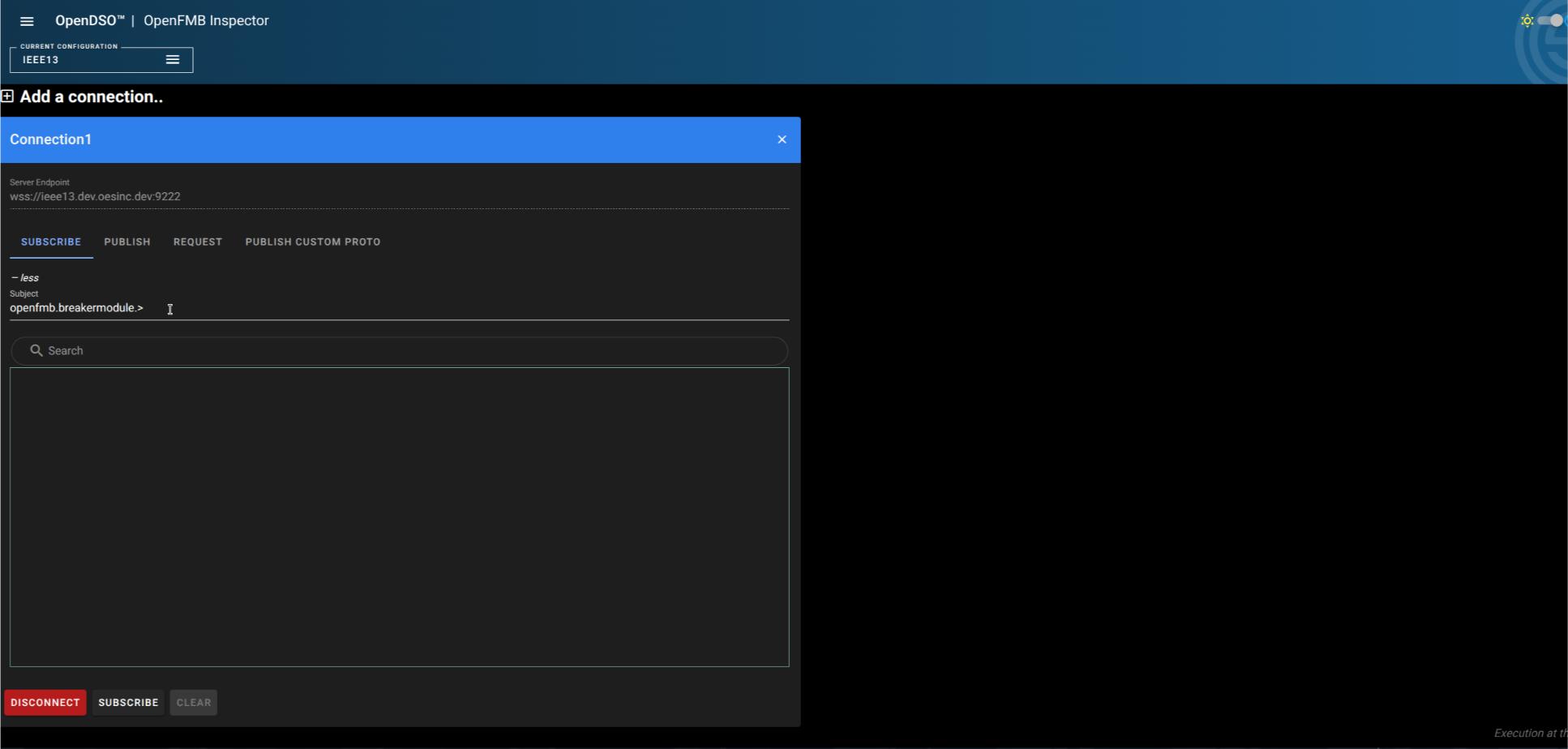
openfmb.loadmodule.>- All load module messagesopenfmb.solarmodule.>- All solar module messagesopenfmb.regulatormodule.>- All regulator module messagesopendso.>- All OpenDSO control messages
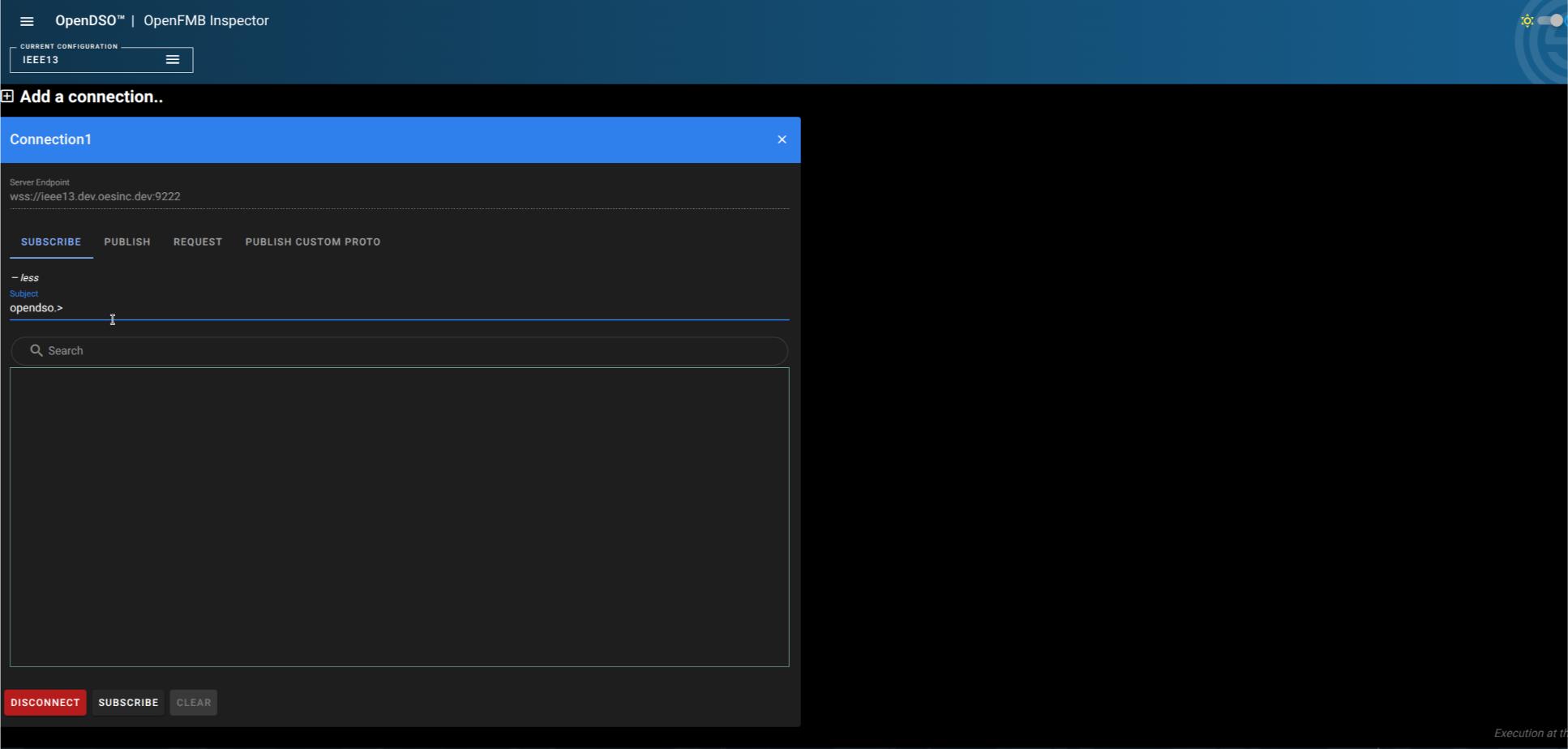
Subscribing to Specific Devices
To monitor a specific device by ID, use the full subject pattern:
openfmb.breakermodule.*.6e86c913-aaf2-445f-b8f9-d4f754096186
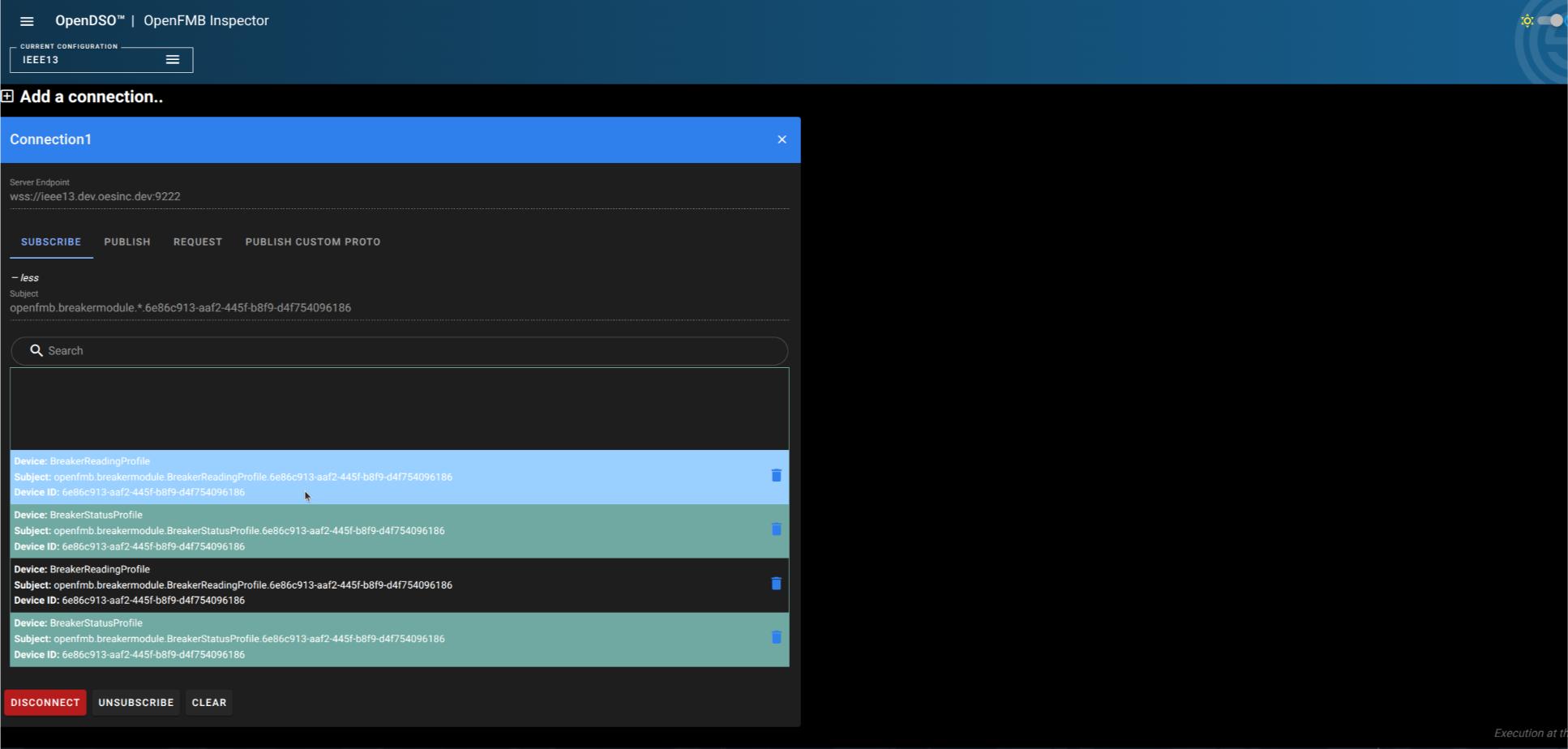
This shows all message types for the specific device with that ID.
Publishing Messages
Publishing JSON Messages
- Switch to the PUBLISH tab in your connection window
- Enter the subject in the Subject field (e.g.,
a.test.topic) - Enter your message in JSON format in the Message field:
{
  "testJSONData": "TestValue"
}
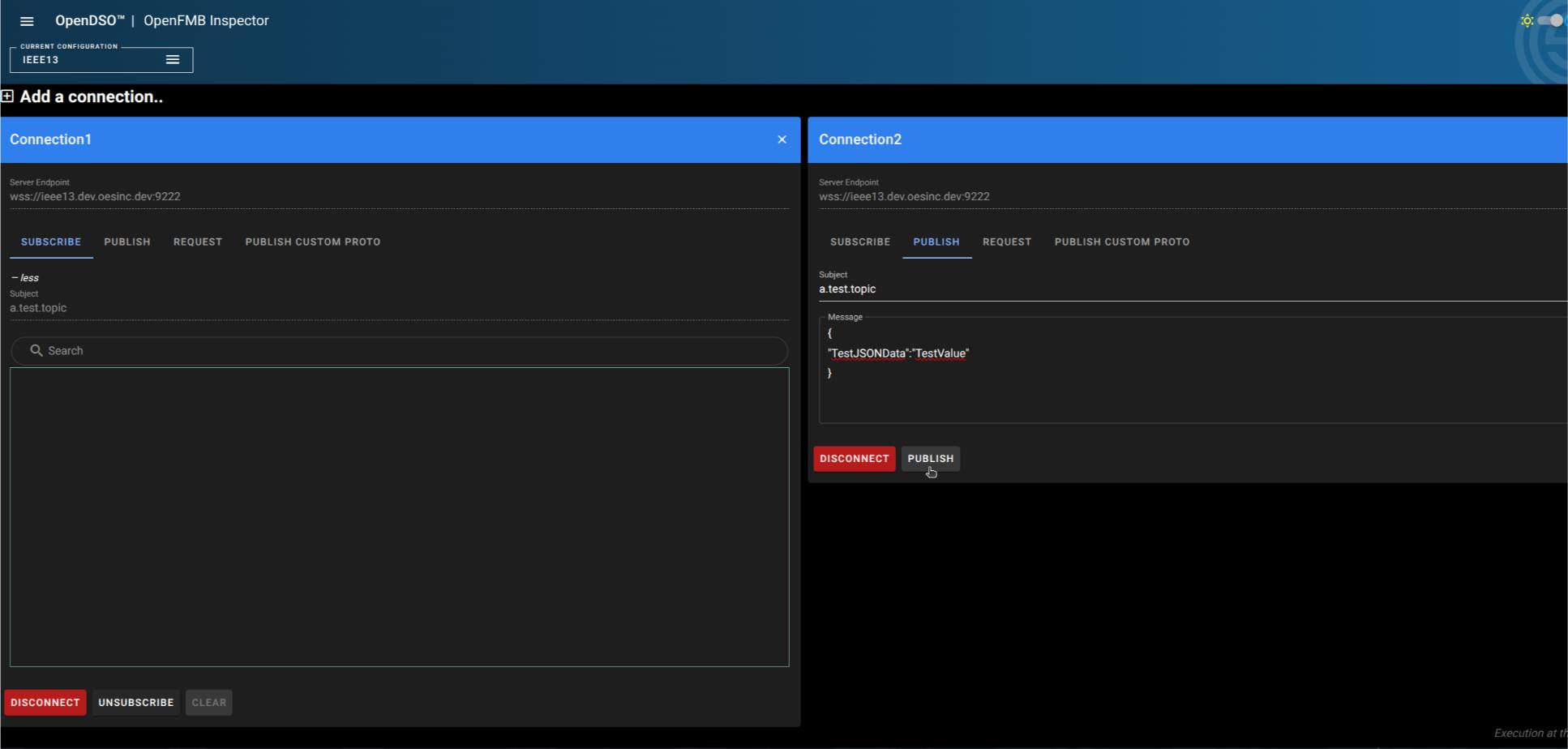
- Click the PUBLISH button to send the message
Testing Publish/Subscribe
You can verify message publishing by:
- Opening a second connection to the same NATS server
- Subscribing to the topic in one connection
- Publishing to that topic from the other connection
- Observing the message appear in the subscriber
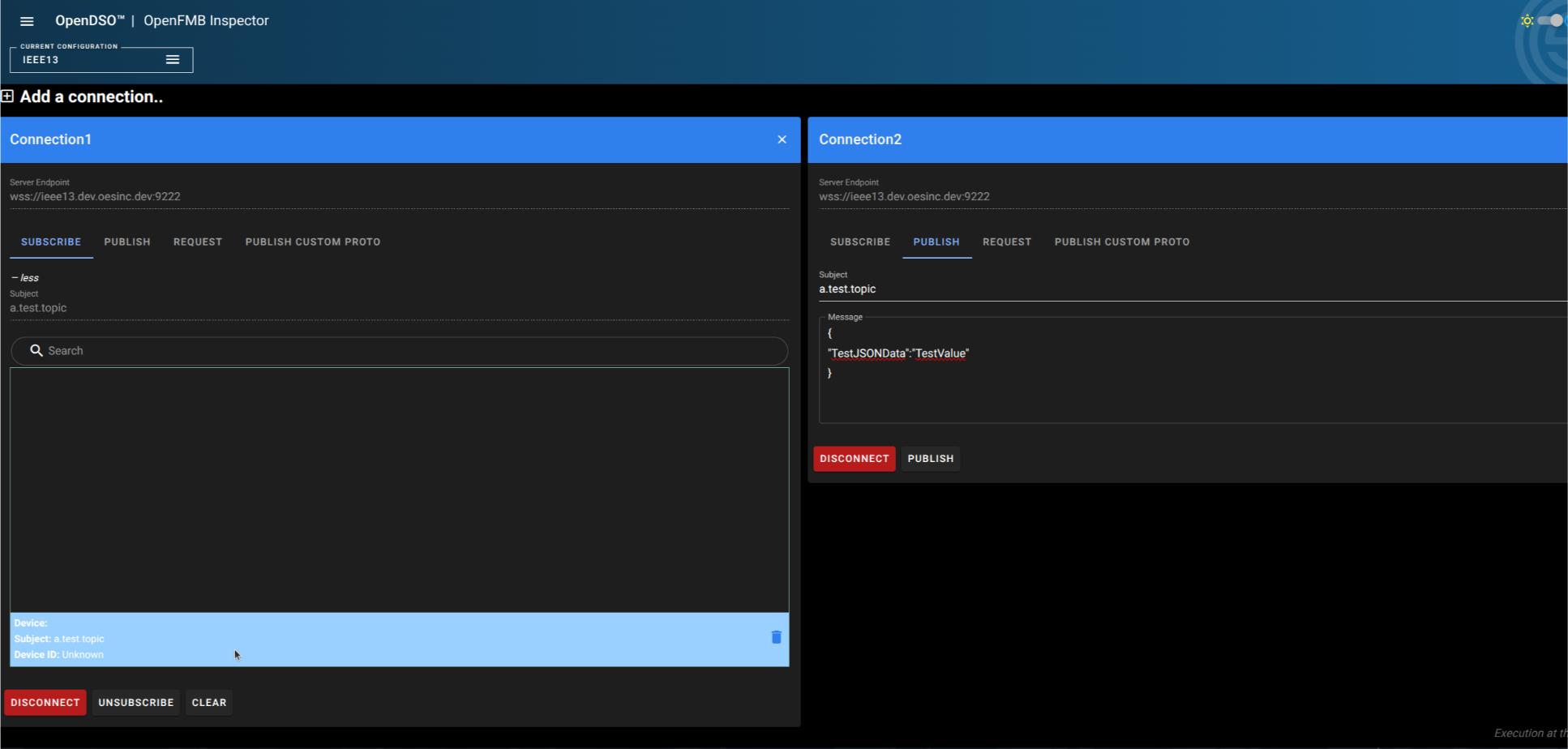
Working with Multiple Connections
The tool supports managing multiple NATS connections simultaneously:
- Click "Add a connection..." to create additional connections
- Each connection appears as a separate window
- You can subscribe to different topics on each connection
- Useful for comparing messages between different NATS servers or monitoring different topic patterns
Configuration Management
The tool supports multiple configuration profiles:
- Select different configurations from the CURRENT CONFIGURATION dropdown at the top of the interface
- Each configuration can contain different server endpoints and connection settings
Use Cases
Debugging OpenFMB Integrations
- Subscribe to
openfmb.>to see all OpenFMB traffic - Inspect message structures to verify correct protobuf encoding
- Verify device IDs and message routing
Monitoring Specific Devices
- Use device-specific subject patterns to monitor individual equipment
- Track status changes and profile updates
- Verify message timing and frequency
Testing Message Flows
- Publish test messages to verify system responses
- Use the REQUEST tab for request/response patterns
- Monitor multiple topics simultaneously to trace message propagation
Troubleshooting
- Search for specific properties within messages
- Compare messages from different devices
- Verify message content matches expected values
- Check for missing or incorrect fields
Tips and Best Practices
- Use Wildcards Wisely: Start with broad subscriptions (
openfmb.>) then narrow down to specific patterns - Search Effectively: Use the message-level search to quickly find specific fields or values
- Monitor Performance: Be cautious with high-volume topics; use specific subscriptions to reduce message load
- Copy Messages: Use the Copy button to save message examples for documentation or debugging
- Multiple Windows: Open multiple connections to compare messages across different servers or topics
- Clear Regularly: Use the CLEAR button to remove old messages and improve interface performance
Troubleshooting
Cannot Connect
- Verify the NATS server endpoint is correct and accessible
- Check that the server is running and accepting WebSocket connections
- Ensure the port number is correct
No Messages Appearing
- Verify your subscription pattern is correct
- Check that messages are actually being published to the topic
- Try using
>to subscribe to all topics to verify connectivity
Messages Not Decoding
- Ensure the server is sending valid protobuf messages
- Verify the protobuf schema matches the messages being sent
- Check for custom protobuf definitions that may need to be loaded
Additional Features
REQUEST Tab
Use this tab to send request/response style messages where you expect a reply from the NATS server.
PUBLISH CUSTOM PROTO Tab
This advanced feature allows you to publish custom protobuf message types that may not be standard OpenFMB profiles.